Emilia Tunnels Windows Install Guide
Step-by-Step Setup
This guide shows how to install Emilia Tunnels on a Windows computer. The process usually takes 3 to 5 minutes.
Target audience: restaurant managers, field operators, and on-site support staff. No terminal or programming knowledge is required.
Overview
| Step | Action | Time |
|---|---|---|
| 1 | Download the Emilia Tunnels zip file | 1 min |
| 2 | Extract the zip file | 1 min |
| 3 | Run the installer as administrator | 1 min |
| 4 | Accept Windows prompts and wait for installation | 1 min |
| 5 | Enter the restaurant/location and optional contact in the browser | 1 min |
Before You Begin
Make sure you have:
- A Windows 10 or Windows 11 computer.
- Internet access.
- Permission to approve Windows security or administrator prompts.
- The official Emilia Tunnels download link generated below or provided directly by EmiliaVision.
Use only the official EmiliaVision link
If you did not receive the download link from EmiliaVision, stop and contact support before installing.
Step 1: Download the Zip File
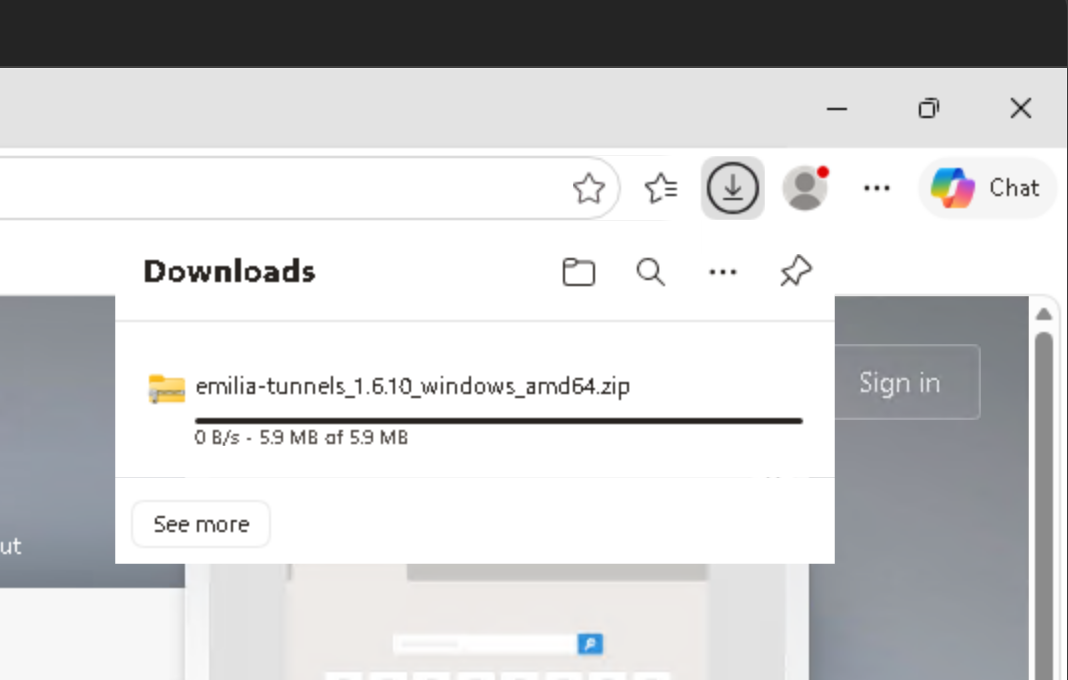
- Complete the Cloudflare human check below.
- Click Get download link.
- Click Download Emilia Tunnels ZIP and wait until the
.zipfile finishes downloading.
Download the latest official installer
This generates a fresh temporary link for the latest stable Emilia Tunnels Windows ZIP.
Loading human check...
Do not run files from inside the zip
Windows may show the zip as a folder, but you must extract it first. Run the installer from the extracted folder.
Step 2: Extract the Zip File
- Open the Downloads folder.
- Right-click the Emilia Tunnels
.zipfile. - Click Extract All....
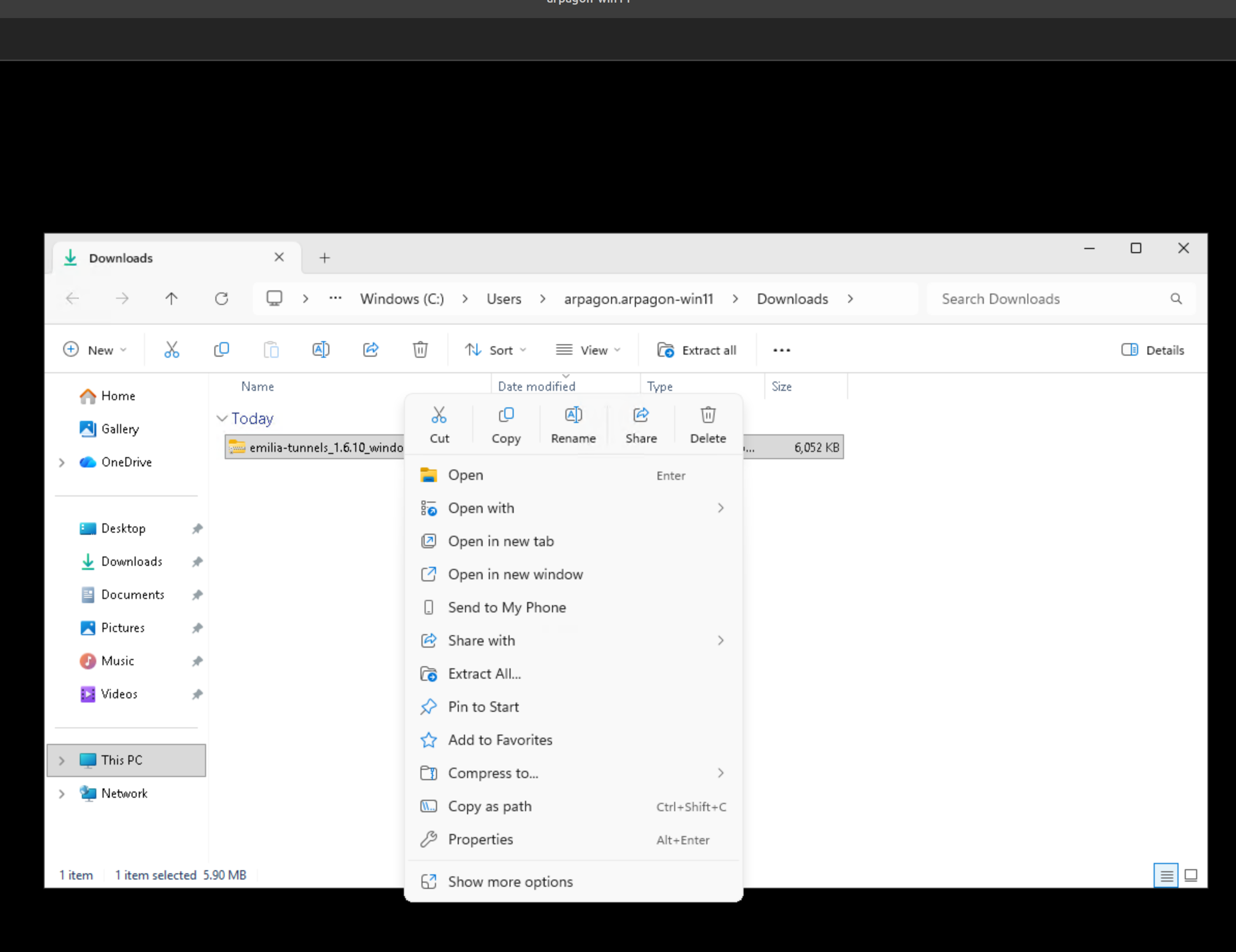
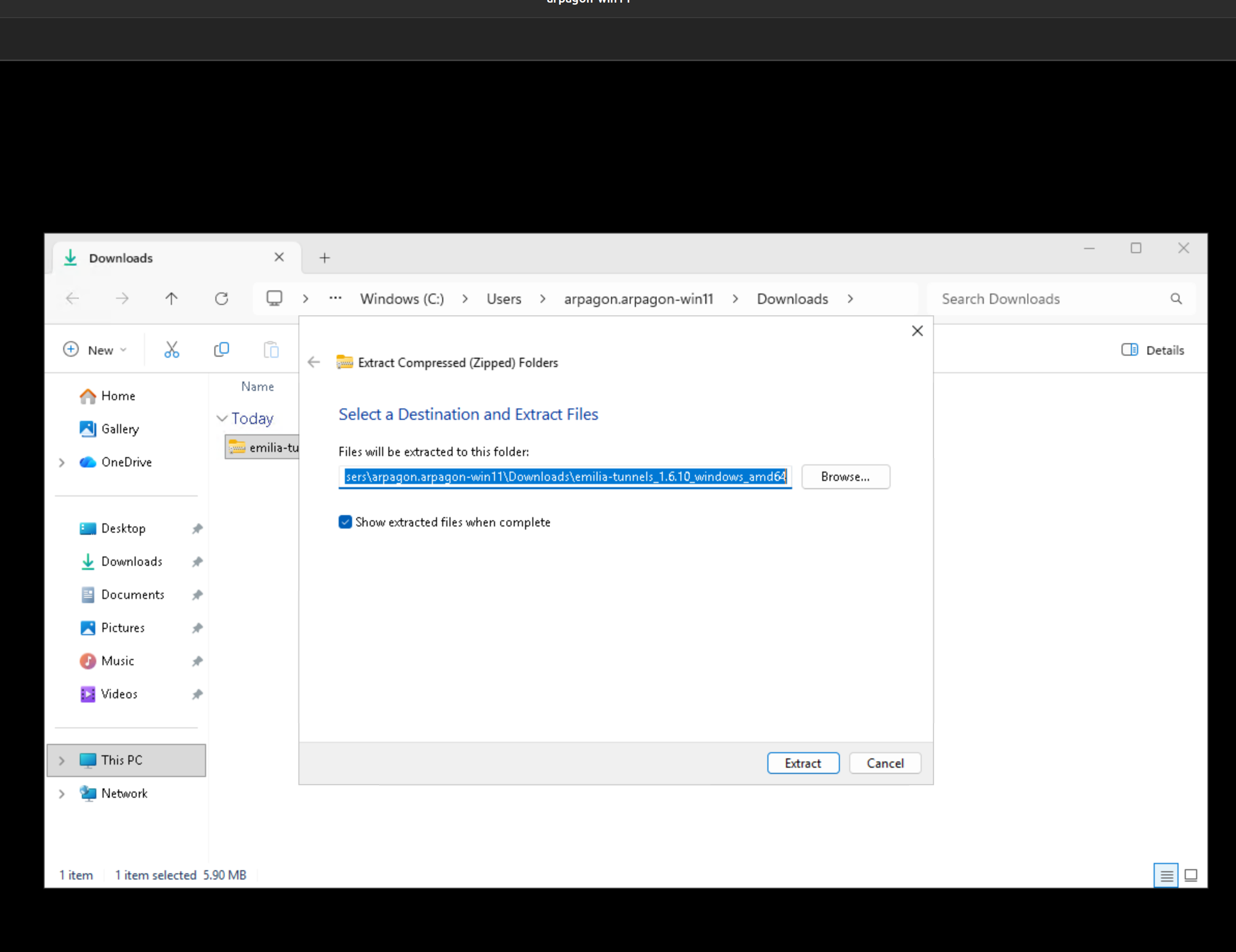
- Keep the default destination folder.
- Click Extract.
Step 3: Run the Installer as Administrator
After extraction, Windows opens the extracted folder. You should see:
emilia-tunnels.exeinstall-emilia-tunnels.cmduninstall-emilia-tunnels.cmdREADME.md
Right-click install-emilia-tunnels.cmd and choose Run as administrator.
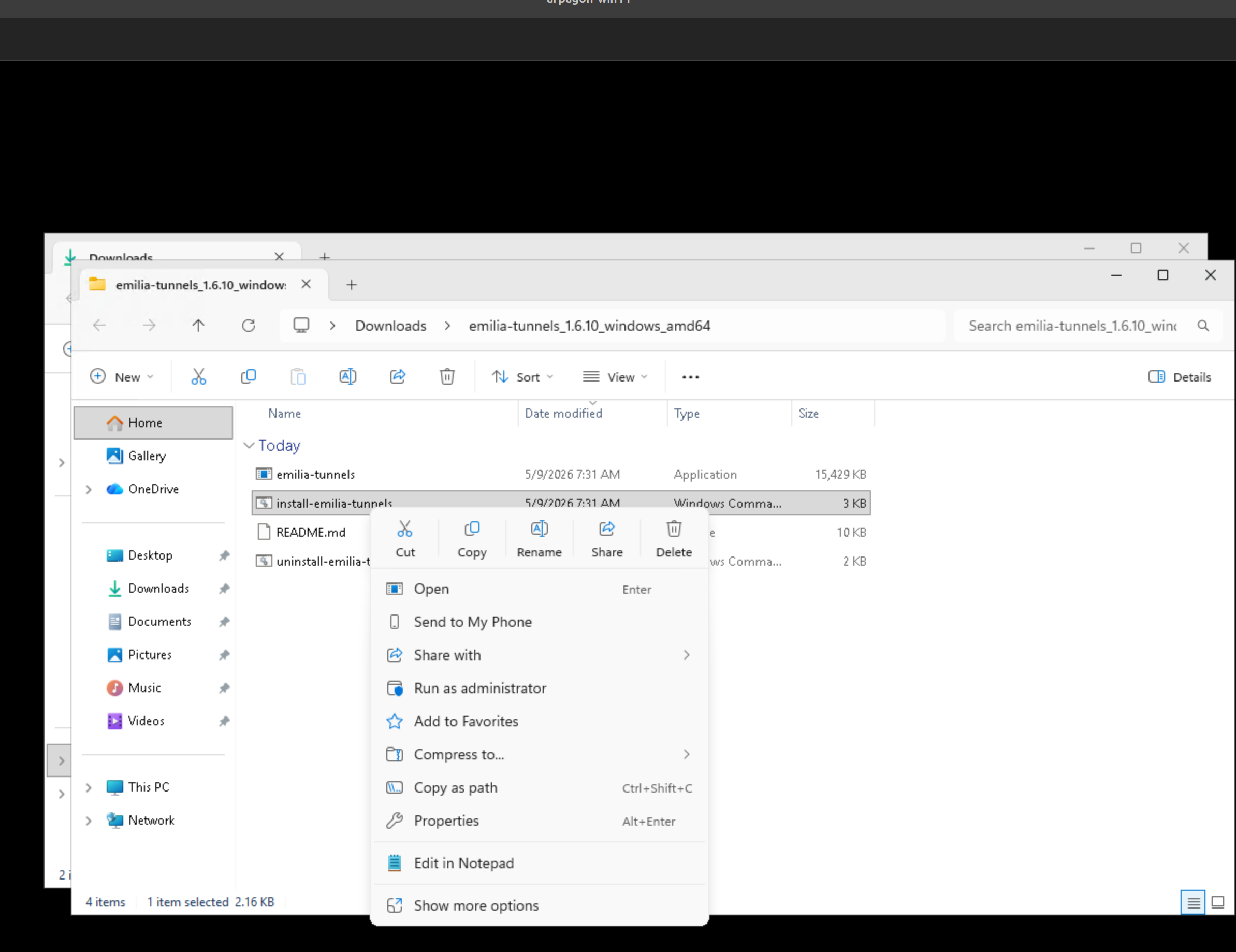
Run the .cmd installer as administrator
Do not open emilia-tunnels.exe. The supported installer is install-emilia-tunnels.cmd.
Step 4: Accept Windows Prompts
Windows may ask for confirmation. Click Run or Yes if the file came from the official EmiliaVision link.
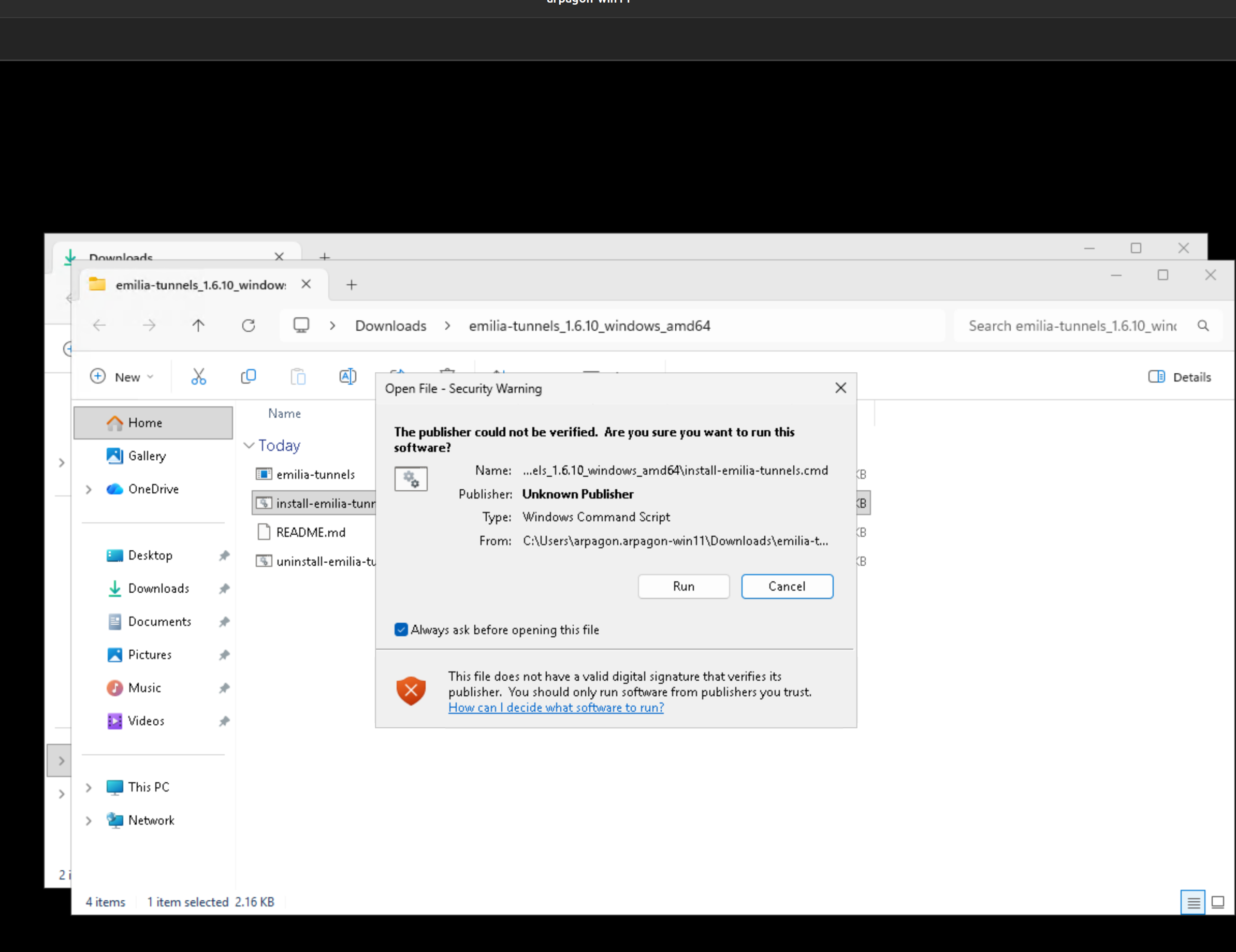
The installer starts the Emilia Tunnels background service first. When the service is running, it opens the setup page in your default browser. The installer window can close automatically; the service keeps running.
If you are unsure, stop
If the file did not come from EmiliaVision, or the warning looks unexpected, cancel and contact support.
Step 5: Send Setup Information
The browser opens this public page:
Enter:
- Restaurant and branch/location — required. Include the restaurant plus branch, mall, neighborhood, city, or country.
- Contact name, phone, or email — optional.
Examples:
McDonald's - Mall X - Miami, USBurger King - Airport Terminal 2 - Orlando, USKFC - Downtown Plaza - Austin, US
Click Send setup information.
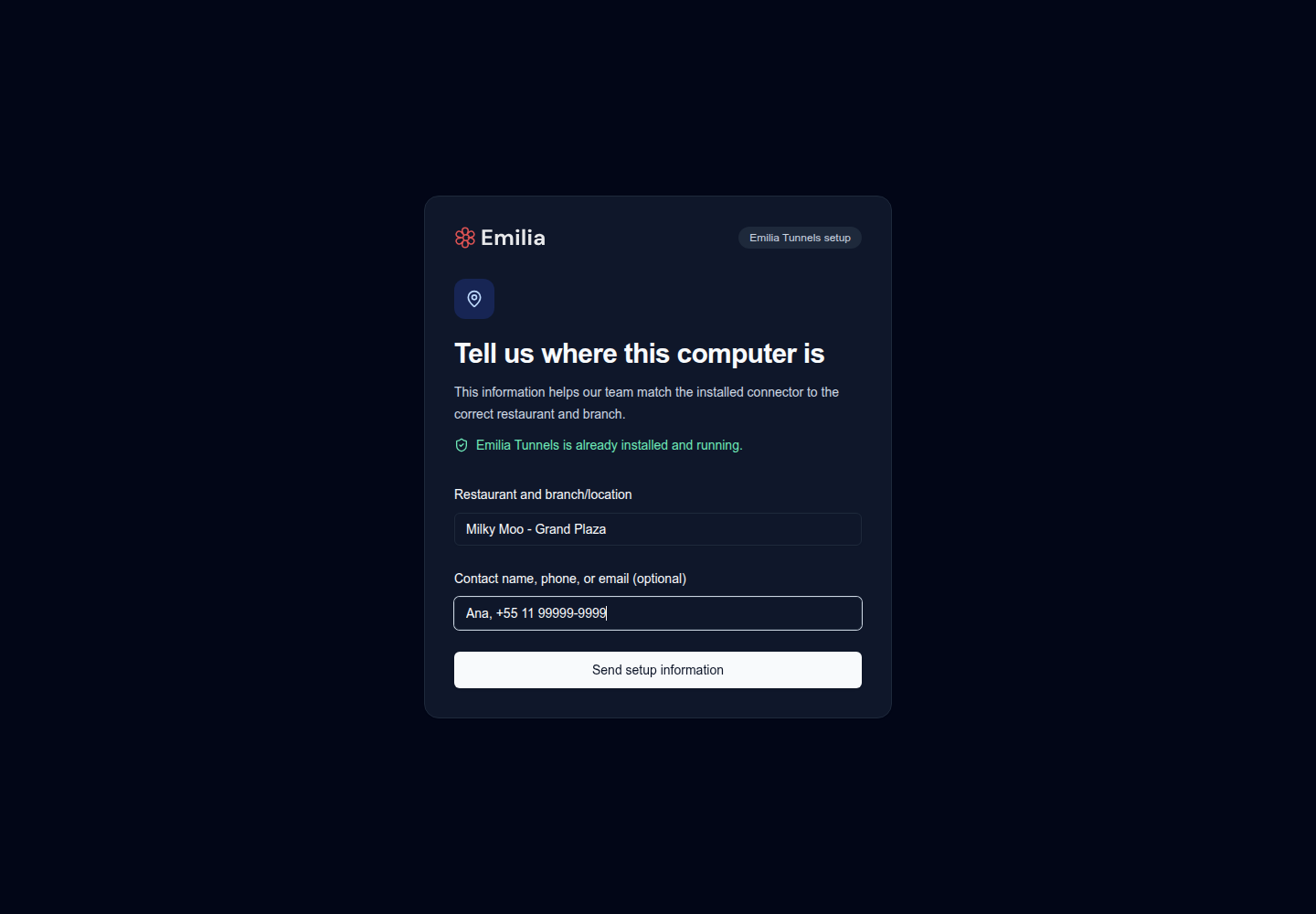
After the page confirms receipt, you can close it. Emilia Tunnels is already running; the form does not control the service.
Browser problems do not stop installation
If the browser does not open or you close the page, Emilia Tunnels still runs. You can run install-emilia-tunnels.cmd again to reopen the setup page.
What Happens Next
Keep the computer turned on and connected to the internet. EmiliaVision support reviews the submitted information and the pending installation evidence, then completes the remaining configuration remotely.
The browser information is only a setup hint. It does not automatically create or assign restaurant configuration.
Uninstall Emilia Tunnels
Only uninstall Emilia Tunnels if EmiliaVision support asks you to do so.
- Open the extracted Emilia Tunnels folder.
- Right-click
uninstall-emilia-tunnels.cmdand choose Run as administrator. - Accept the Windows prompt.
- Wait for the window to finish and close.
The uninstaller stops the background service, removes installed files, removes legacy startup entries, and deletes local setup information.
Troubleshooting
| Problem | What to do |
|---|---|
| Windows asks how to open the file | Extract the zip first, then run install-emilia-tunnels.cmd from the extracted folder. |
You do not see install-emilia-tunnels.cmd | Make sure you opened the extracted folder, not the zip preview. |
| Windows asks for administrator permission | Click Yes. This is required to install the Windows background service. |
| The installer window closes | This is expected after installation. Emilia Tunnels continues running in the background. |
| The browser does not open | The service is still installed. Copy the setup URL shown by the installer, or run the installer again. |
| The setup page reports missing computer information | Close it and run install-emilia-tunnels.cmd again so the installer opens the complete link. |
| The setup form cannot send | Check internet access and retry. The running service is not affected. |
| Antivirus or SmartScreen shows a warning | Continue only if the file came from EmiliaVision. If Kaspersky blocks, quarantines, or removes Emilia Tunnels, follow Run Emilia Tunnels with Kaspersky. |
| The computer has no internet connection | Connect it to the internet and run the installer again. |
Support
- Email: [email protected]
- Schedule a call: Book a meeting